Image to Pixel Art Converter
Turn a photo into real pixel art — a true low-resolution grid snapped to a limited palette, not a blur filter. Choose the sprite size, a retro console palette or your own colors, add dithering, and export a crisp PNG at any scale. No account, no watermark, nothing uploaded.
To convert an image to pixel art, shrink it to a small grid (say 64 pixels wide), then limit it to a handful of colors so every pixel lands on a deliberate palette entry. Those two steps — downscaling and palette reduction — are what separate pixel art from a photo that has simply been made smaller.
The converter below does both live as you move the sliders. Drop in a photo, pick a size and a palette, and download the result either at its true size (one file pixel per art pixel, ready for a game engine) or scaled up 4×, 8× or 16× with hard edges for sharing and printing. Everything runs in your browser, so it's instant and your image never leaves your device.
- 01
Open your photo
Drop in a JPG, PNG or WebP, or paste a screenshot. A tightly cropped subject on a plain background converts best.
- 02
Pick size and palette
Choose how many pixels wide the art should be and which colors it may use. The preview updates instantly, so try a few combinations.
- 03
Download the PNG
Export at true size for games and editors, or scaled up with hard edges for sharing. Grab the palette as .hex or .gpl too.
Drop a photo here
JPG, PNG or WebP — converted on your device
or paste from clipboard (⌘V)
This converter runs entirely in your browser. Your image is never uploaded to any server.
Real results from this converter
Each image below is an unretouched output of the tool on this page, with the exact settings listed — load your own photo and you'll get the same behavior. The photos were cropped to the subject first, which is the single biggest quality win.
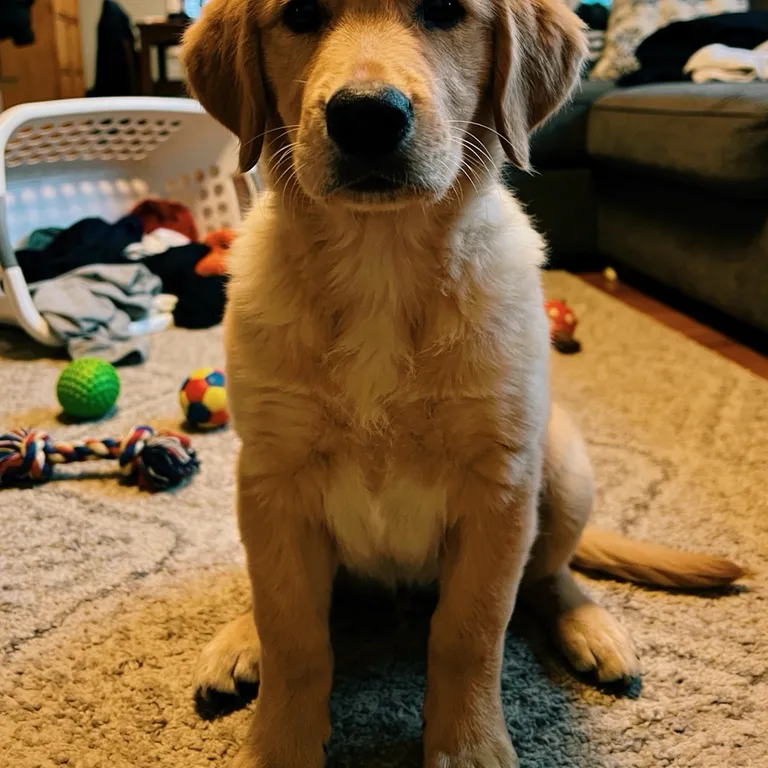
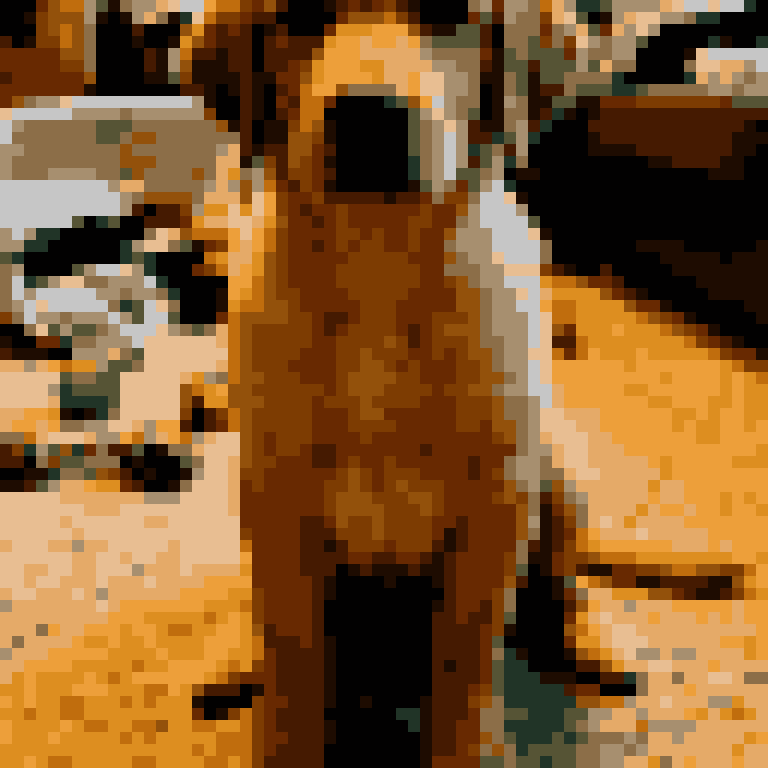
Puppy → 64-pixel sprite, Auto palette
64 px wide, Auto palette with 16 colors, no dithering, saturation +20 and contrast +10. Flat color areas keep the fur readable even at this size.

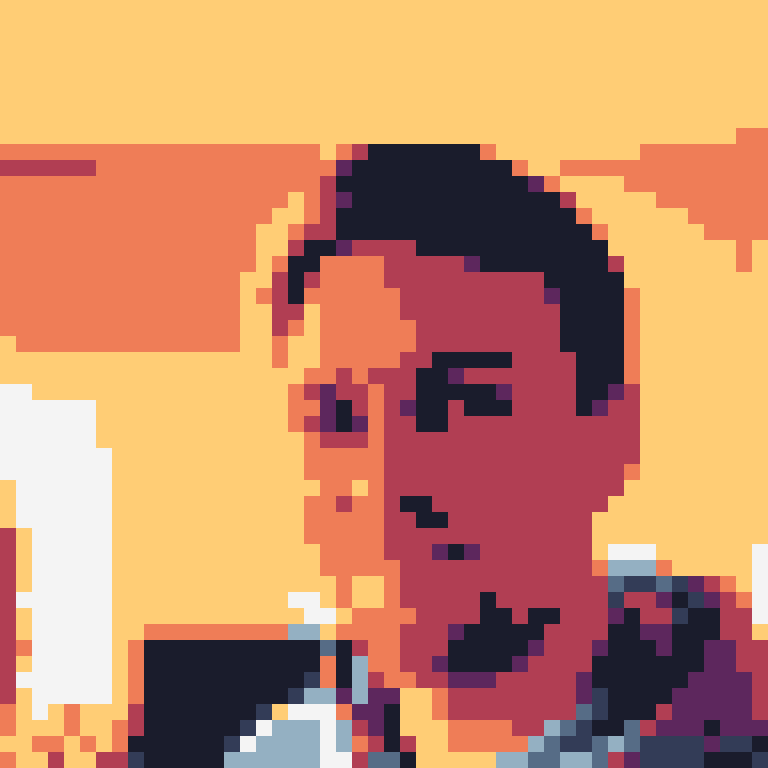
Portrait → 48-pixel avatar, Sweetie 16
48 px wide, Sweetie 16 palette, no dithering, saturation +20 and contrast +15. A fixed palette pushes skin and background into stylized tones — the look of a game character portrait rather than a shrunken photo.
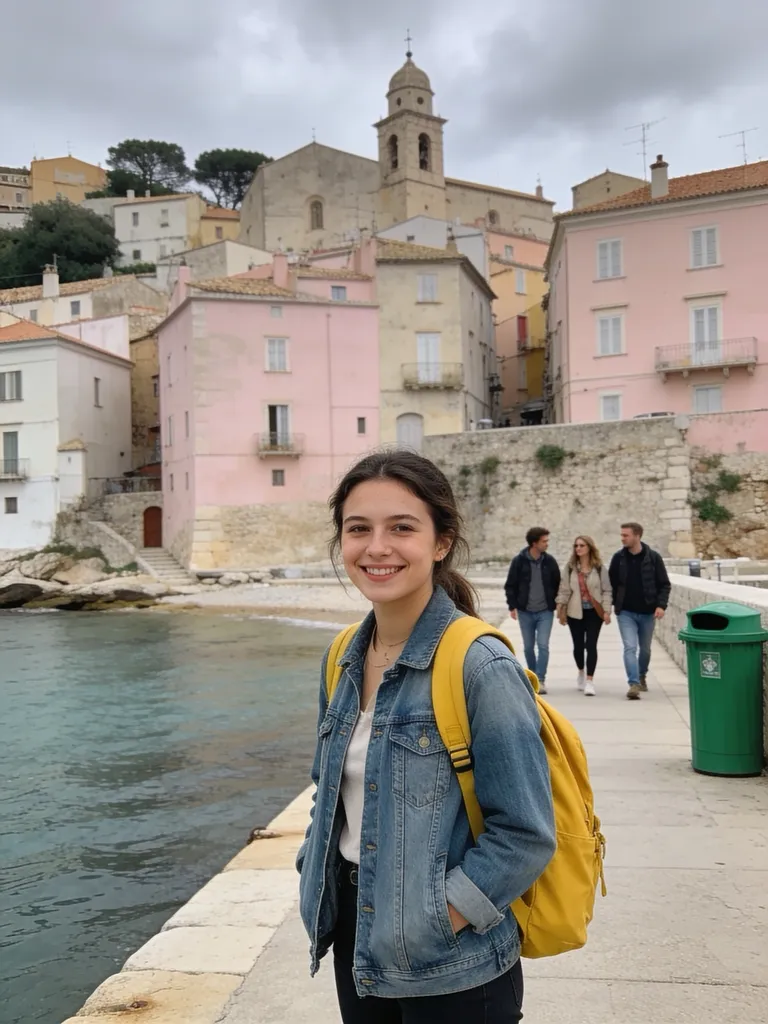
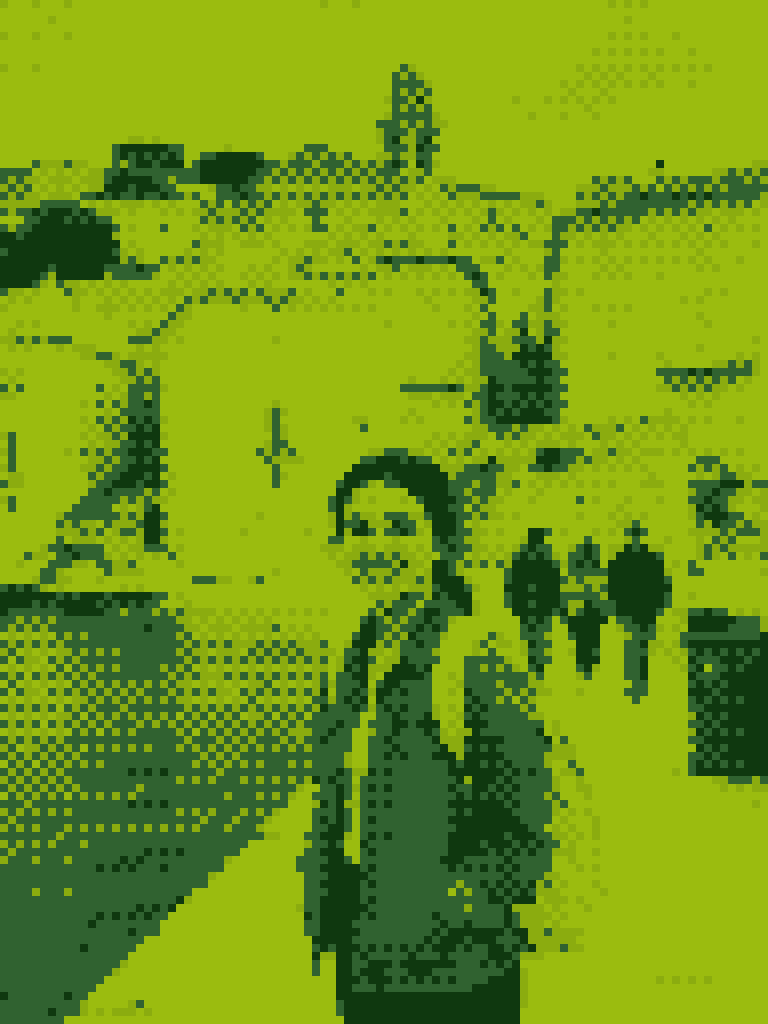
Street scene → Game Boy screen
96 px wide, the four-shade Game Boy palette with ordered dithering at 50% and contrast +15. The dither pattern fakes in-between shades the palette doesn't have, exactly like games of that era did.
Choosing a palette
The palette decides more about the final look than the size does. Auto builds a palette from your photo; the fixed palettes force your image into the colors of a specific console or a popular artist palette.
Auto (2–64 colors)
Analyzes your photo and picks the most representative colors (median cut, refined with k-means so small but important colors like eyes survive). Best when you want the result to stay faithful to the original. 8–16 colors already looks clearly pixel-art; 32+ starts to look photographic again.
PICO-8
The 16-color palette of the PICO-8 fantasy console: saturated, high-contrast, slightly candy-colored. Great for bold subjects and game mockups; harsh on subtle skin tones.
Game Boy
Four shades of the original Game Boy's green screen. Instant nostalgia — pair it with ordered dithering so gradients like skies don't collapse into flat bands.
Sweetie 16
A widely used 16-color artist palette from Lospec with warm skin tones, cool blues and a balanced grey ramp. The most forgiving fixed palette for portraits and avatars.
Commodore 64 and CGA
Period-accurate home-computer looks: the C64's muted 16 colors, or CGA's famously garish black, cyan, magenta and white. Use them when the era matters more than accuracy.
Grayscale and 1-bit
Eight greys for a monochrome LCD look, or pure black and white. 1-bit almost always needs dithering — try Floyd–Steinberg at around 60% for photographs.
Custom
Paste any list of hex codes, or the contents of a Lospec .hex file or a GIMP/Aseprite .gpl palette. Useful when the art has to match an existing game, brand or tileset.
Settings guide: size, colors and dithering
Three settings do almost all of the work. Here's how to think about each one.
Size: how many pixels wide
This is the width of the actual art, not the download. 32 px suits icons and emotes, 48–64 px suits avatars and character sprites, 96–128 px suits scenes and posters. Smaller grids look more stylized and forgive busy photos; larger grids keep detail but drift back toward a photo.
Colors: fewer than you think
Classic sprites used 4 to 16 colors. Start Auto at 16; if the result looks muddy, go down to 8–12 and raise saturation. A limited palette is what makes shapes read clearly at small sizes.
Dithering: none, Floyd–Steinberg or ordered
Dithering mixes two palette colors in a pattern to suggest a third. Leave it off for clean, flat sprites. Floyd–Steinberg gives organic, film-grain-like texture and suits photos with gradients. Ordered (Bayer) dithering gives the regular cross-hatch pattern of 8-bit and Game Boy graphics.
Adjust colors before converting
Pixel art lives on contrast. A small boost to contrast (+10 to +20) and saturation (+15 to +30) before quantizing usually beats any amount of fiddling afterwards, because the palette is built from the adjusted colors.
Export: true size or scaled
1× gives you one file pixel per art pixel — what game engines, Aseprite and tilemaps expect. 4×, 8× and 16× enlarge each pixel into a hard-edged block, so the image stays crisp on social media, where small images get blurred when upscaled.
What people make with it
Game sprites and mockups
Turn reference photos or concept renders into sprites for a jam game or a prototype, then clean them up in Aseprite. Export at 1× with the matching .gpl palette and the colors line up in your editor.
Avatars and profile pictures
A 48–64 px portrait with a 12–16 color palette makes a distinctive avatar for Discord, Twitch, GitHub or a forum. Export at 8× so the platform doesn't blur it.
Cross-stitch, beads and mosaics
Every pixel is one stitch, bead or tile. Keep the grid small, choose a palette that matches your thread or bead colors with Custom, and switch on the grid overlay to count.
Retro posters, stickers and merch
Pixel art prints sharply at any size when you export with a big scale factor. Game Boy and PICO-8 palettes give an instantly recognizable retro style for posters, stickers and T-shirts.
How the converter works — and what it can't do
First the photo is reduced to your chosen grid by area averaging: each art pixel becomes the average of every photo pixel it covers, which keeps colors true and avoids the shimmering you get from simple resizing. Transparent areas are averaged separately, so edges don't pick up dark fringes, and every pixel ends up either fully opaque or fully transparent — pixel art has no half-transparent pixels.
Then every pixel is snapped to the nearest palette color, measured with a perception-weighted color distance rather than plain RGB, so a dull brown doesn't jump to a vivid orange. With dithering on, the rounding error of each pixel is spread to its neighbors (Floyd–Steinberg) or offset with a fixed 4×4 threshold pattern (ordered), which is how a four-color palette can still suggest a sunset.
What it doesn't do is redraw your image the way a pixel artist would. Hand-made sprites have deliberate outlines, exaggerated features and cleaned-up clusters of pixels; an algorithm only samples what's in the photo. For the closest result, start from a simple, well-lit subject, crop tightly, and treat the output as an excellent first draft that you can touch up pixel by pixel in an editor.
Tips for better pixel art from photos
- Crop to the subject. Background clutter eats pixels and palette entries that your subject needs.
- Use a plain or transparent background. A PNG with a transparent background also unlocks the 1px sprite outline.
- Go smaller than feels right. A 48 px face reads better as pixel art than a 160 px one.
- Boost contrast and saturation slightly before converting rather than adding colors.
- Turn dithering off for sprites and icons; turn it on for skies, gradients and very small palettes.
- Check the result at 1× and at 8× — pixel art has to read at both sizes.
Image to pixel art — FAQ
Turn your photo into pixel art now
Free, instant and private — then explore the other image tools on Unpixelate.