Free AI Photo Editor — Edit Photos with AI, No Sign-Up
Upload a photo, write what should change, and keep everything else. No layers, no masks, no model zoo to study — four models picked for four kinds of edit.
- 1 free edit a day, no sign-up
- No watermark on downloads
- JPG, PNG, WebP up to 10 MB
- Failed edits are never charged
Fast everyday edits. Keeps the subject, changes what you ask.
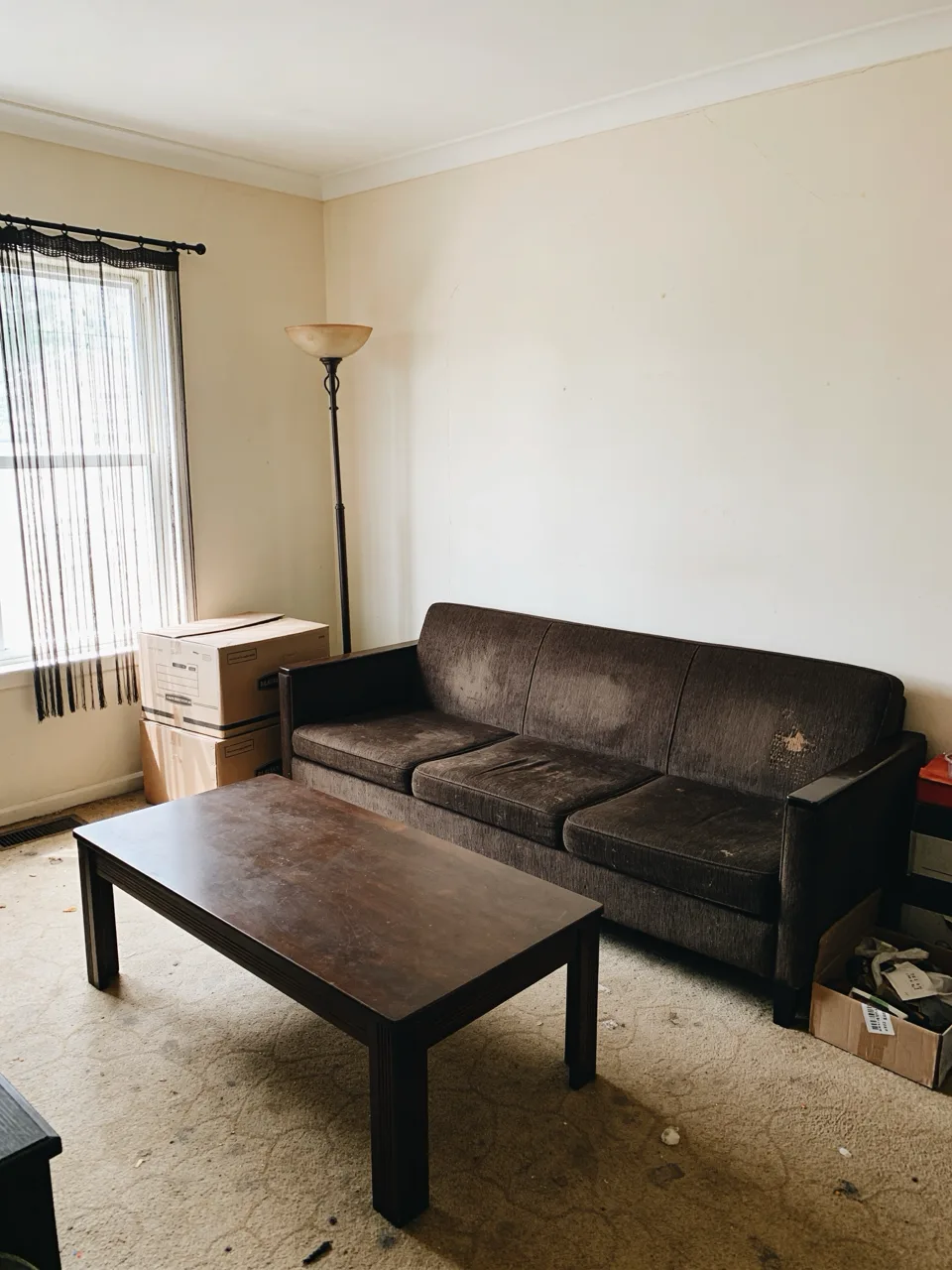 Before
Redesign this room in a bright Scandinavian style: light-beige sofa, low oak coffee table, warm floor lamp, a jute rug and a few plants. Remove the boxes and the clutter. Keep the room layout, the window and the camera angle unchanged.
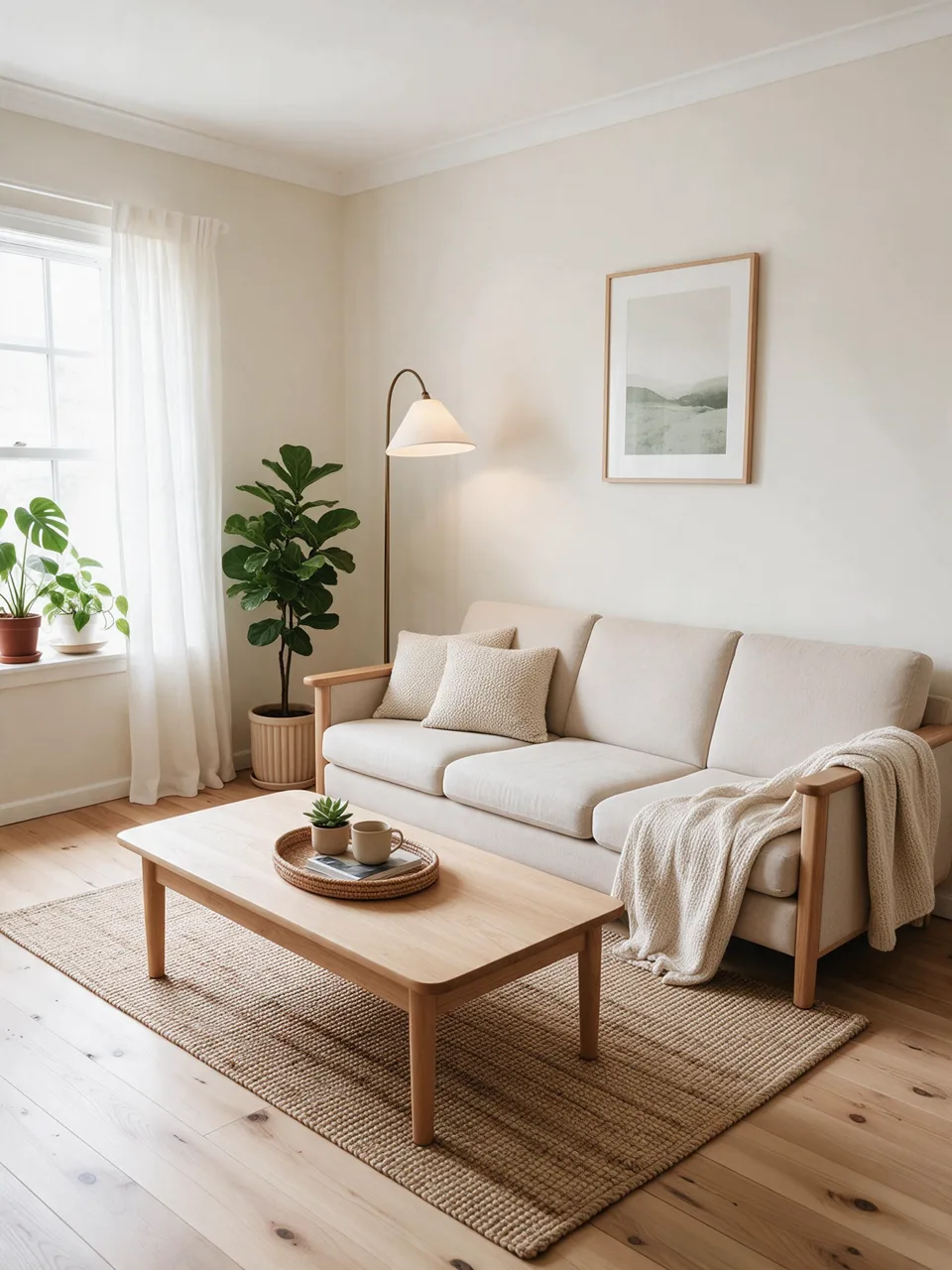 After
AfterDated living room → Scandinavian redesign
Your edit appears here. Upload a photo and describe the change. You get a before/after slider, a download, and the option to keep editing the result.
An AI photo editor with a prompt works like a brief to a retoucher: you say what to change and what to leave alone, and the model redraws only that. "Replace the background with a light-gray studio wall, keep the face and hair unchanged" is a complete instruction. The photo you upload stays the reference for everything you did not mention.
This editor keeps the choice small on purpose. Unpixelate Edit is the default for everyday changes and is the one guests can run for free. Nano Banana 2 is the pick when a face must stay the same person, GPT Image 2.5 when the instruction is long or involves text, and Seedream 5 Pro for product shots and scene changes at 2K. You can rerun the same photo and prompt on another model and compare the two results.
How to edit photos with AI in 3 steps
- 01
Upload the photo
Drop, paste or pick a JPG, PNG or WebP. Add a reference image if the edit needs one — an outfit, an object, a background.
- 02
Describe the change
Write what should change and what must stay. Type @ to point at a specific image, or start from a quick edit.
- 03
Compare and keep editing
Drag the slider to check the result, download it, or use "Edit again" to stack the next change on top.
AI photo editing examples: before and after
Three kinds of edit that change one thing and leave the rest alone. Drag each slider to check.
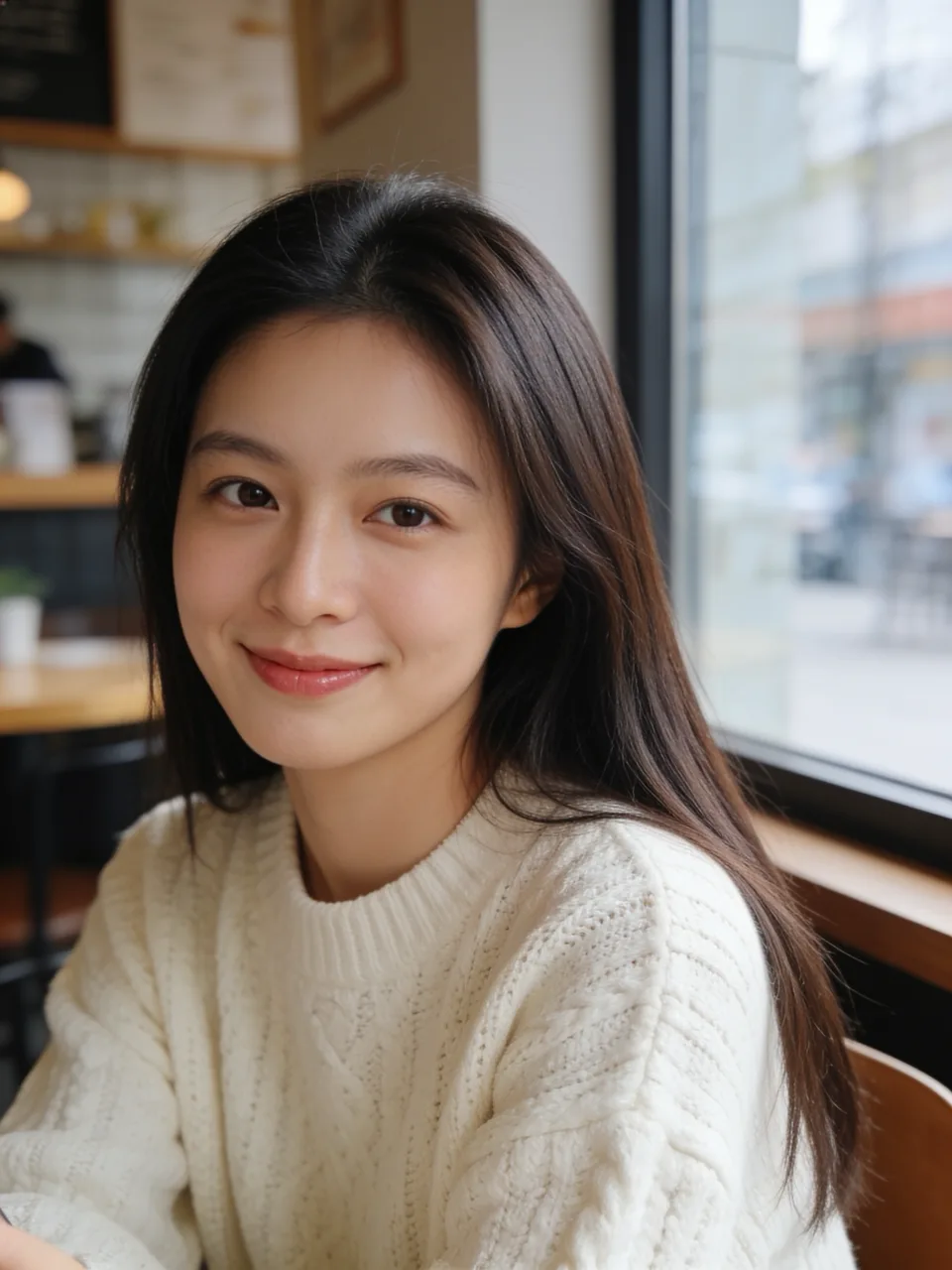
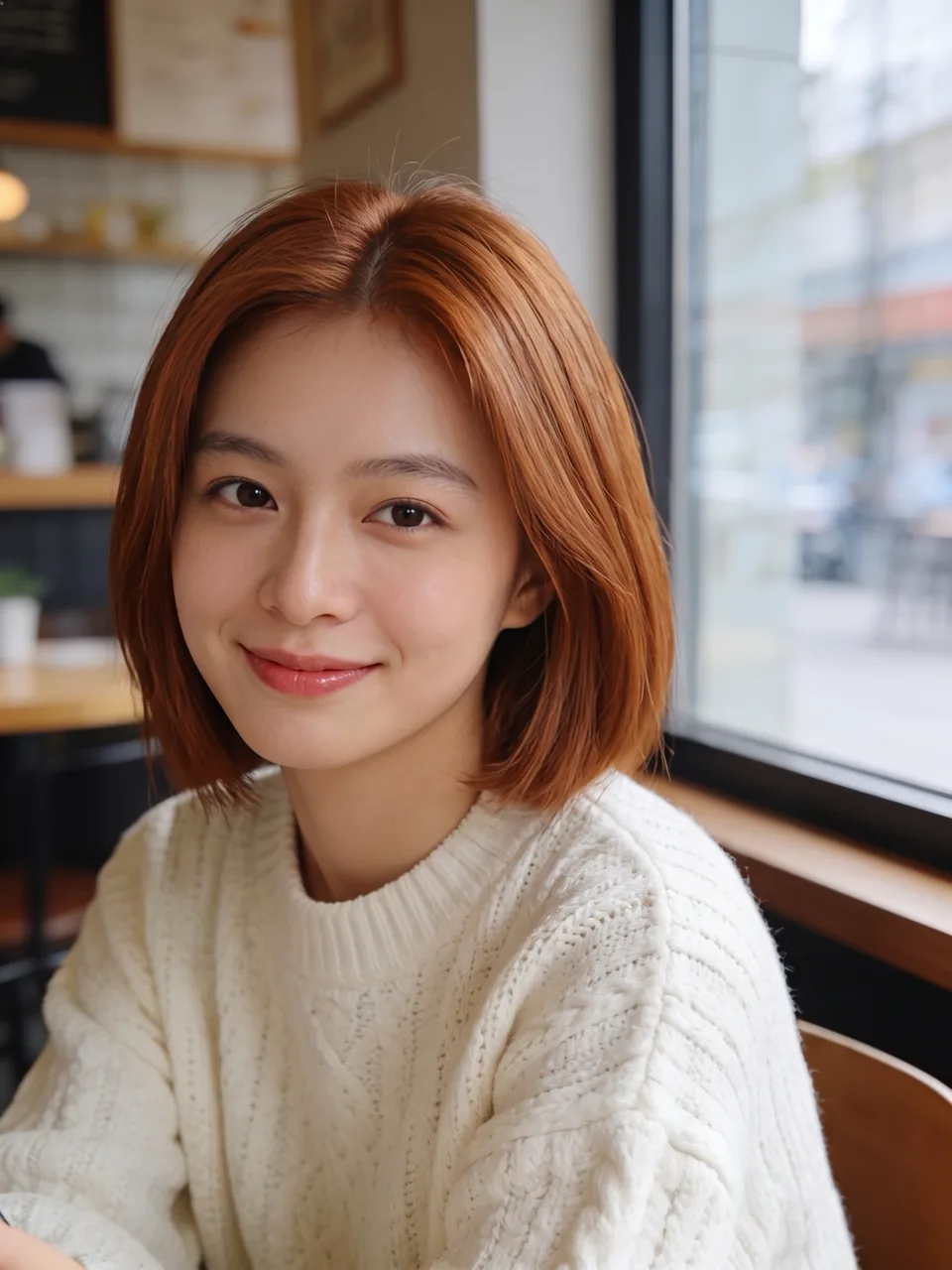
Prompt: Change the hairstyle to a chin-length bob in a warm copper color. Keep the face, expression, sweater, pose and background exactly the same.
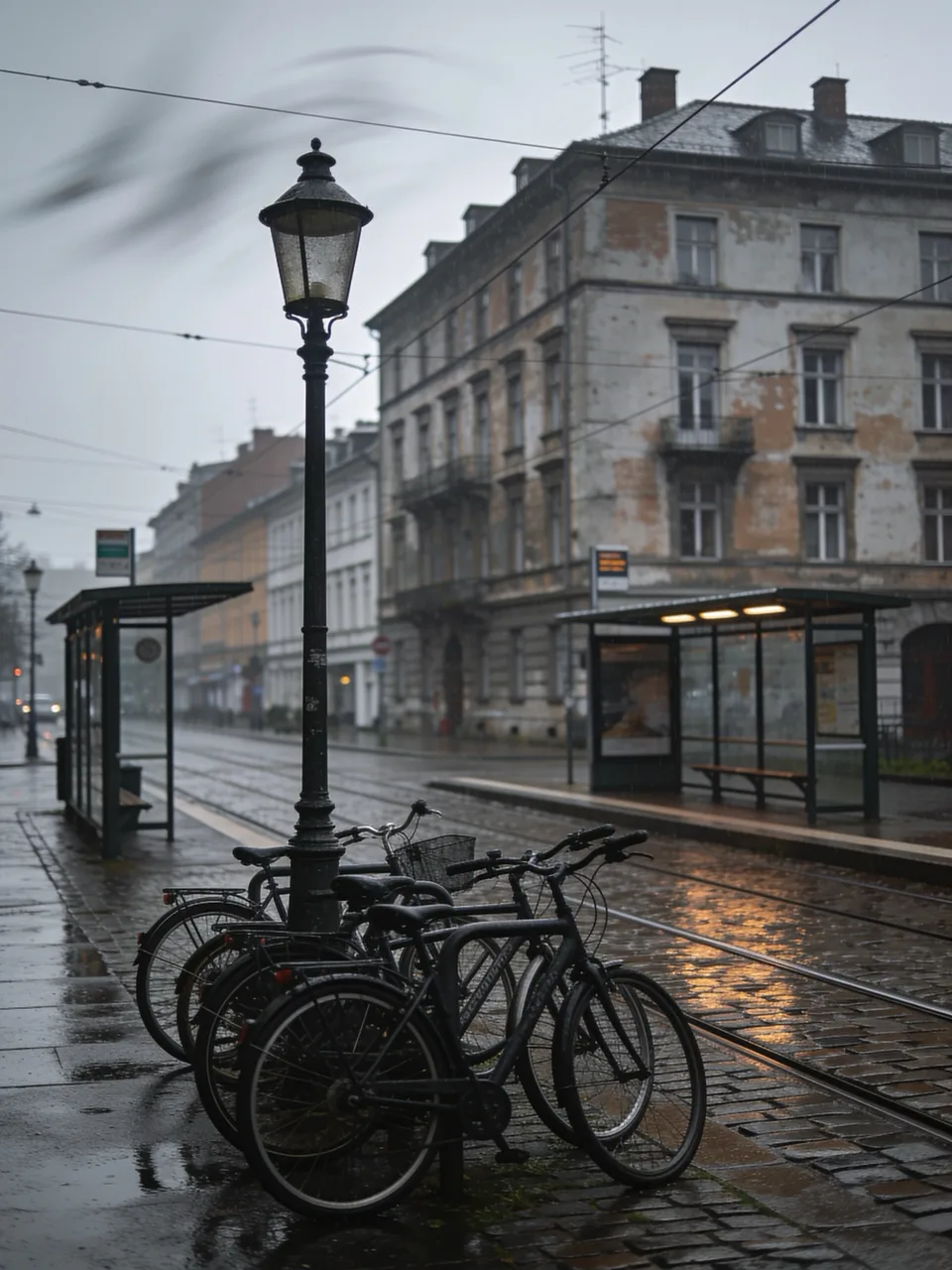
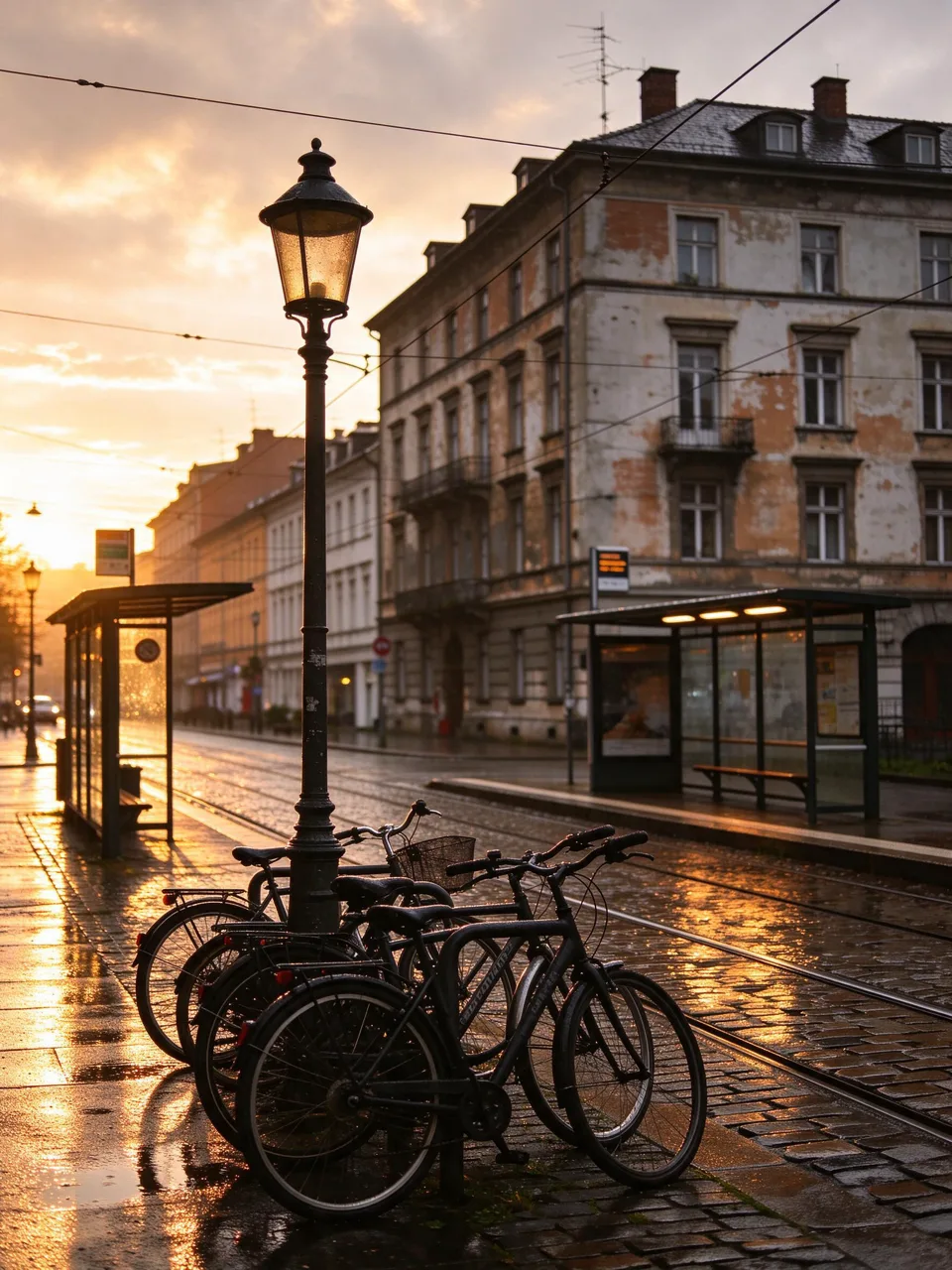
Prompt: Relight the scene as golden hour just after rain: warm low sunlight from the left, long soft shadows and a clearing sky. Keep the buildings, the tram stop, the bicycles and the camera angle unchanged.
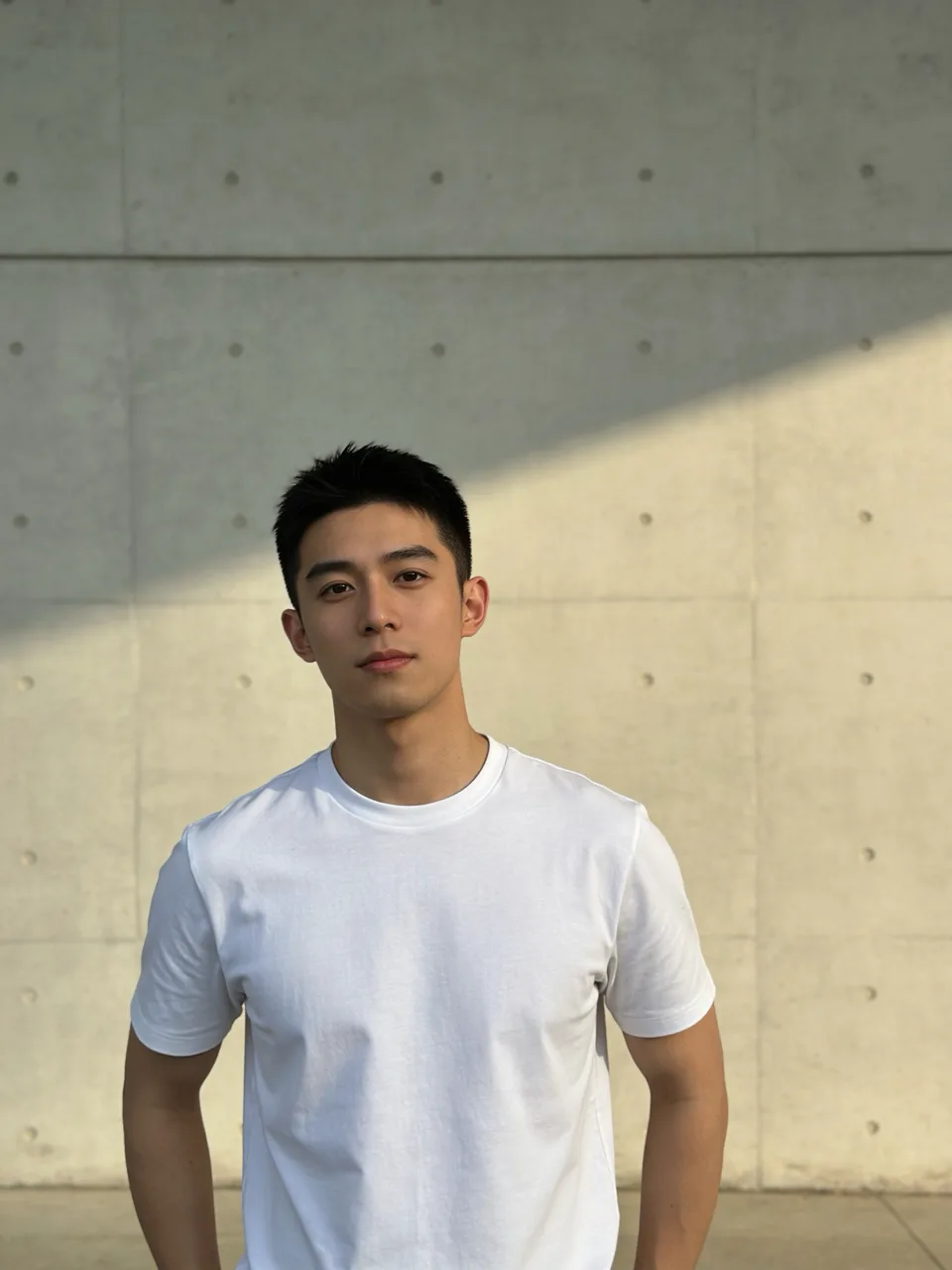
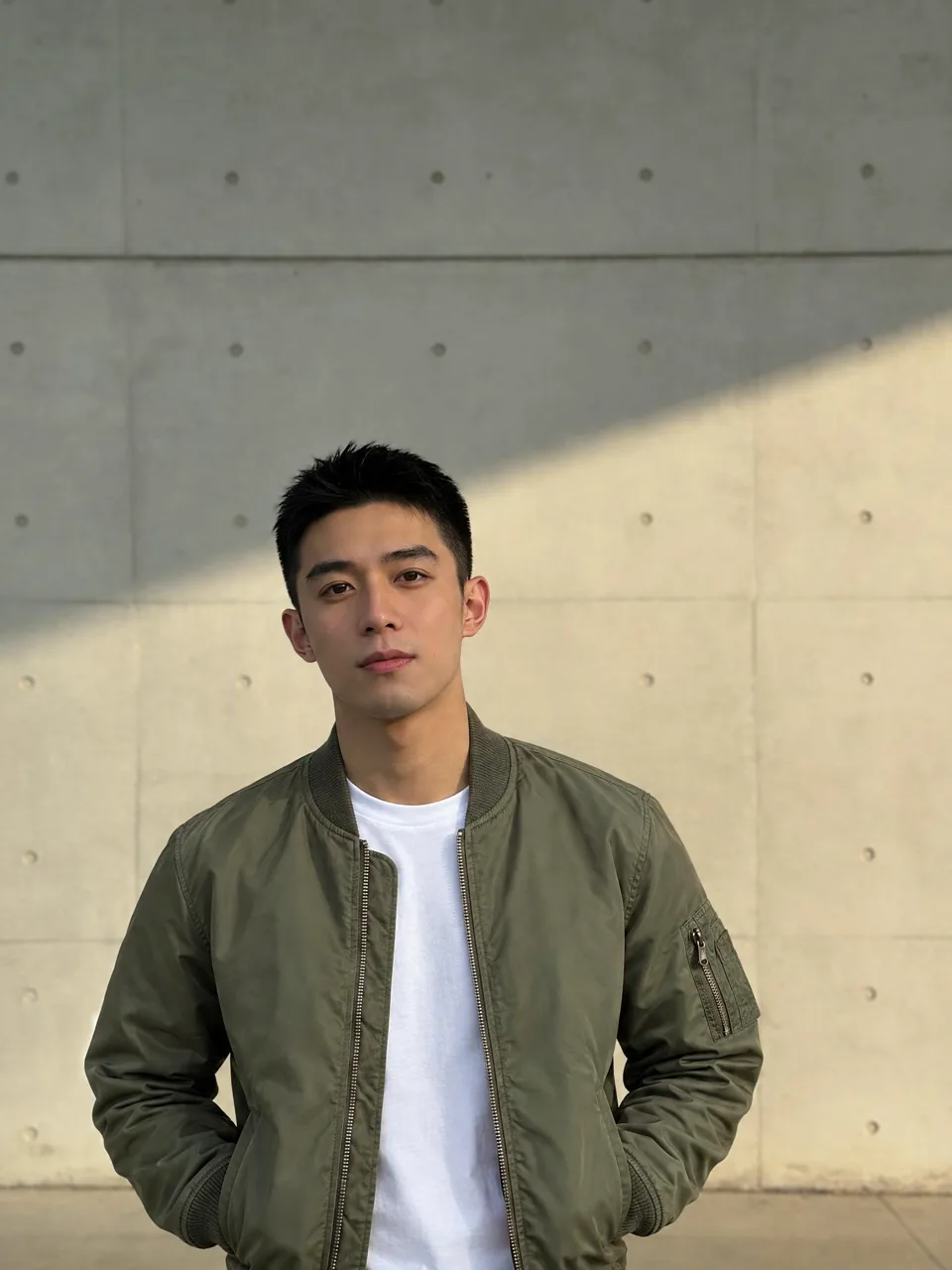
Prompt: The man in image 1 wears the olive green bomber jacket from image 2 over his white t-shirt, unzipped. Keep his face, hair, pose and the concrete wall unchanged.
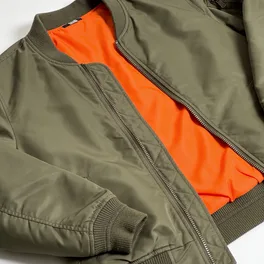 Second photo used as the reference (image 2)
Source photos are AI-generated (no real people). Each result is a single unedited run of the prompt shown.
What you can edit with this AI photo editor
One prompt can combine several of them. The order below is from the most predictable to the most open-ended.
AI background changer
Describe the new setting or upload it as a reference. The subject keeps its outline, pose and lighting direction, so a kitchen snapshot can become a studio portrait without a cut-out halo.
Remove people and objects from a photo
Name what should go — a tourist, a cable, a bin — and the model rebuilds the wall, pavement or sky behind it with matching texture and perspective.
AI clothes changer and hairstyle changer
Swap a hoodie for a blazer or try a shorter cut and a new color. Say which features must stay: face, expression, body proportions.
Relight and recolor a photo
Turn flat overcast light into soft window light, warm up a cold white balance, or grade a photo like a film still while the content stays put.
Add or replace text in a photo
Put a headline on a poster, correct a sign or change the label on a mock-up. Quote the exact wording and name the position and font style.
Combine two photos with AI
Give the editor a subject and an object, outfit or scene, then say how they meet: "she holds the cup from image 2". Scale, grip and shadows are matched to the main photo.
Which AI photo editor model should you pick?
Four models, one per kind of edit. Prices are per edit and shown on the button before you run anything.
| Model | Best for | Photos | Output | Credits |
|---|---|---|---|---|
| Unpixelate Edit | Everyday edits: backgrounds, object removal, color and light. The free lane for guests. | 2 | 1K · 2K | 10 |
| Seedream 5 ProByteDance | Product and interior photos, scene swaps and relighting at 2K. | 4 | 1K · 2K | 18 · 36 |
| GPT Image 2.5OpenAI | Long instructions with several conditions, and anything involving text or logos. | 4 | Follows the input | 24 |
| Nano Banana 2Google | Portraits where the person must stay the same person — outfits, hair, headshots. | 4 | 1K · 2K · 4K | 32 · 48 · 64 |



Unpixelate Edit is our tuned default: a fast edit model plus a fixed instruction that protects everything you did not mention. We may change the engine behind it as better ones ship; the name and the price stay.
How to write an AI photo editing prompt
The same four habits fix most disappointing results.
- 01
Say what changes, then what stays
"Change the wall to dark green. Keep the sofa, the lamp and the camera angle unchanged." The second sentence matters as much as the first.
- 02
Name things the way the photo shows them
"The man on the left in the red jacket" beats "him". If there are two cups, say which one.
- 03
One photo, one role
With references, state each image's job: "Image 1 is the person, image 2 is the jacket she should wear." Type @ to insert the right name for the model you picked.
- 04
Stack small edits instead of one big one
Background first, then the outfit, then the light. "Edit again" carries each result into the next step, and you can go back to any earlier version.
AI photo editor prompts to copy
Each card loads its photo and prompt into the editor. Swap in your own photo and details.
 Pets
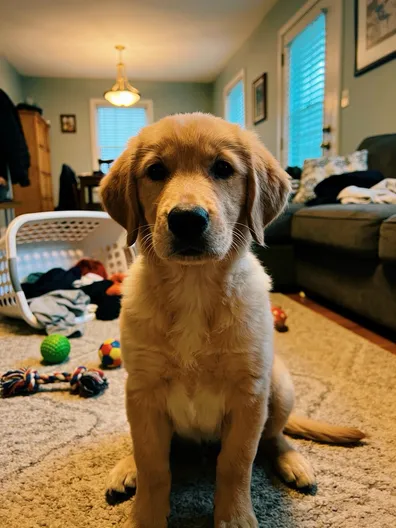
PetsStudio pet portrait
Replace the messy room with a plain warm-gray studio backdrop and soft, even light. Keep the puppy's face, fur color and pose unchanged.
Use this prompt Loads this photo and prompt into the editor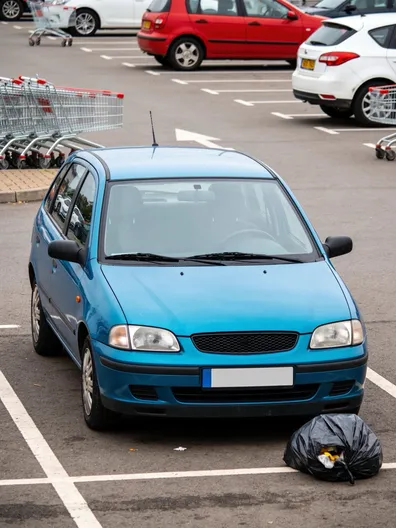 Listings
Clean up a car listing photo
Remove the other cars, the shopping carts and the trash bag, leaving an empty parking lot. Keep the blue car, its reflections and the camera angle unchanged.
Use this prompt Loads this photo and prompt into the editor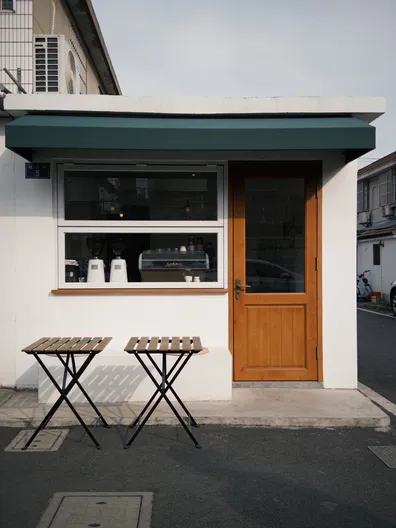 Small business
Put a name on a storefront
Add the text "CAFE LUNA" in cream serif capital letters, centered on the green awning. Keep the building, the door and the tables unchanged.
Use this prompt Loads this photo and prompt into the editor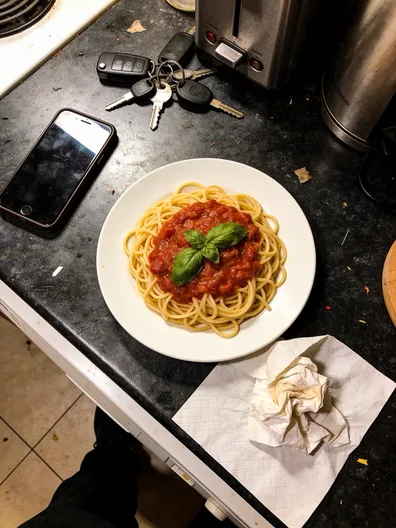 Food
FoodMenu-ready food photo
Remove the phone, the keys and the napkin, replace the counter with a light wooden table and use soft window light. Keep the plate and the pasta unchanged.
Use this prompt Loads this photo and prompt into the editor
More prompts, by task
Copy one into the editor and replace the parts in brackets.
- Background
Replace the background with a clean white studio backdrop and add a soft shadow under the subject. Keep the subject unchanged.
Use - Remove people
Remove everyone in the background and rebuild the scene behind them. Keep the main person unchanged.
Use - Remove an object
Remove [the object] and rebuild the surface behind it naturally. Keep everything else unchanged.
Use - Clothes
Change the outfit to a navy suit with a white shirt. Keep the face, hair, pose and background unchanged.
Use - Hairstyle
Change the hairstyle to a shoulder-length wavy cut in dark blonde. Keep the face and expression unchanged.
Use - Lighting
Relight the photo with soft window light from the left. Keep the colors natural and the composition unchanged.
Use - Season
Change the season to winter: snow on the ground and the roofs, overcast light. Keep the buildings and the people unchanged.
Use - Two photos
The person in image 1 holds the product from image 2 in their right hand. Match the scale and the lighting of image 1.
Use
Files, downloads and privacy
Formats and size
JPG, PNG and WebP up to 10 MB. Photos longer than 2048 px on one side are scaled down in your browser before upload, so the price never depends on a surprise megapixel count.
Downloads without a watermark
Every result downloads at the full output size with no logo on it. Results made with purchased credits can be used commercially.
Recent edits
The editor shows your last edits for 7 days, also for guests on the same browser. Signed-in results are listed in My images as well.
Moderation
Prompts and uploads are screened before anything runs. Sexual content, and requests to remove censorship or clothing, are refused for everyone.
Honest limits
It redraws, it does not retouch pixels
Every edit is a new render guided by your photo. Areas you did not mention usually come back the same, but fine patterns — fabric weave, small print, a tattoo — can shift slightly. Check them with the slider before you publish.
Faces can drift on heavy edits
Changing the outfit, the background and the lighting in one prompt gives the model a lot of freedom. Split it into steps, or use Nano Banana 2, the model we recommend when a face must not change.
Long text is still hard
A headline or a short label works. A paragraph, a small-print ingredient list or non-Latin script may come back with wrong characters. GPT Image 2.5 is the one to try first for text.
It is not a restoration tool
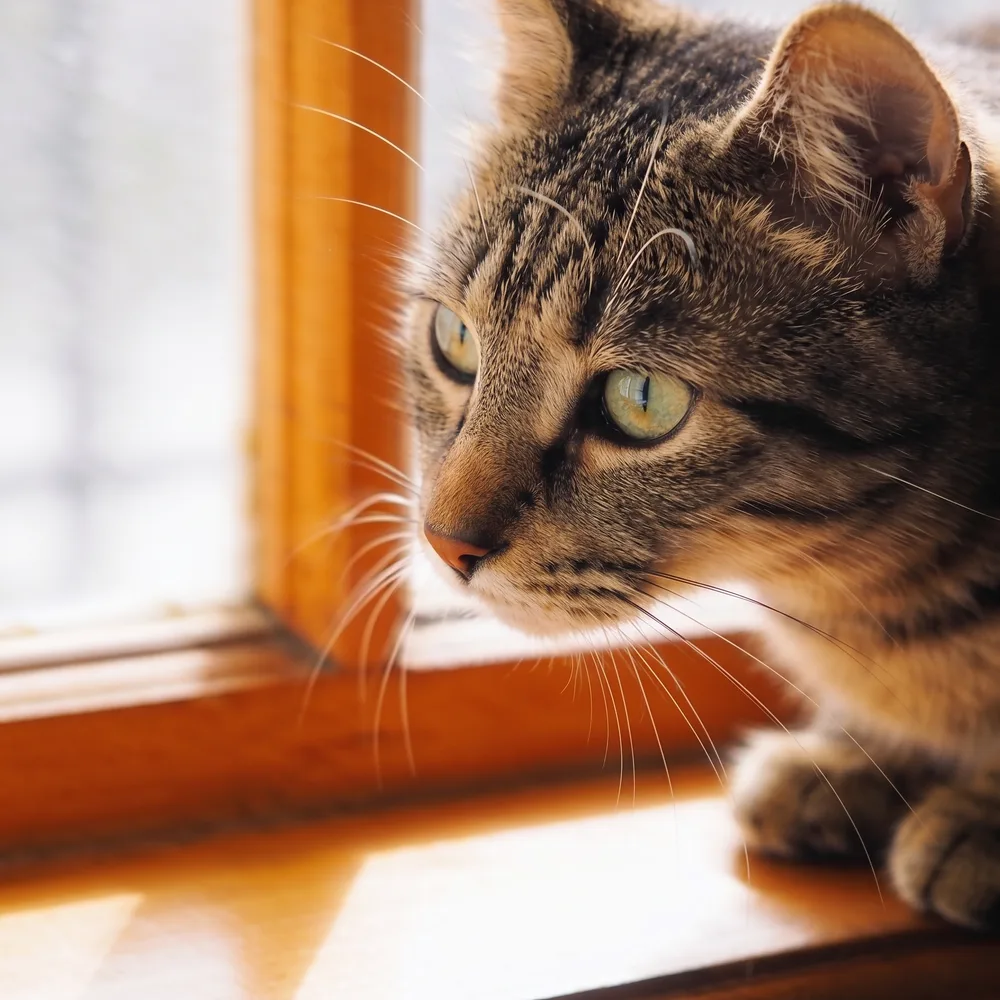
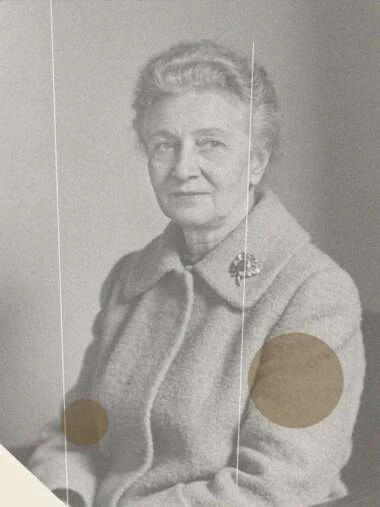
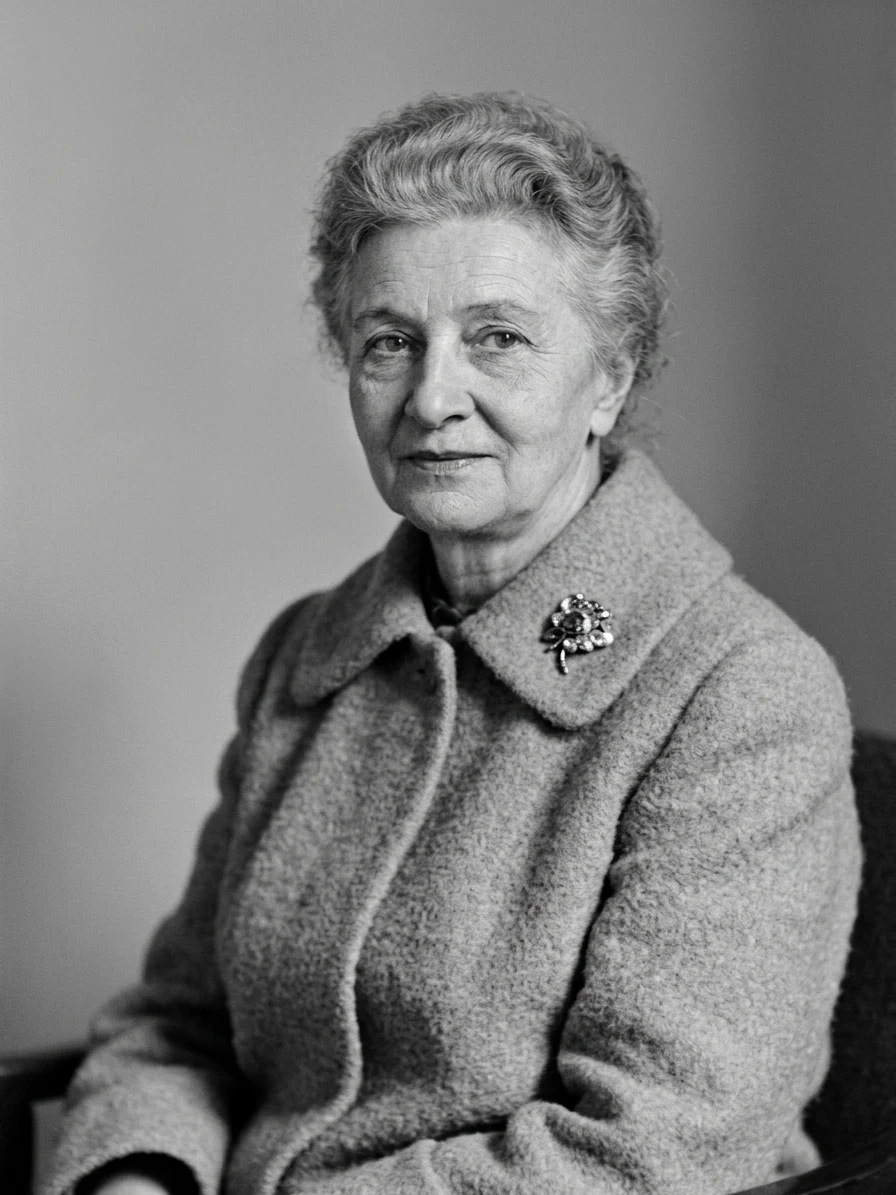
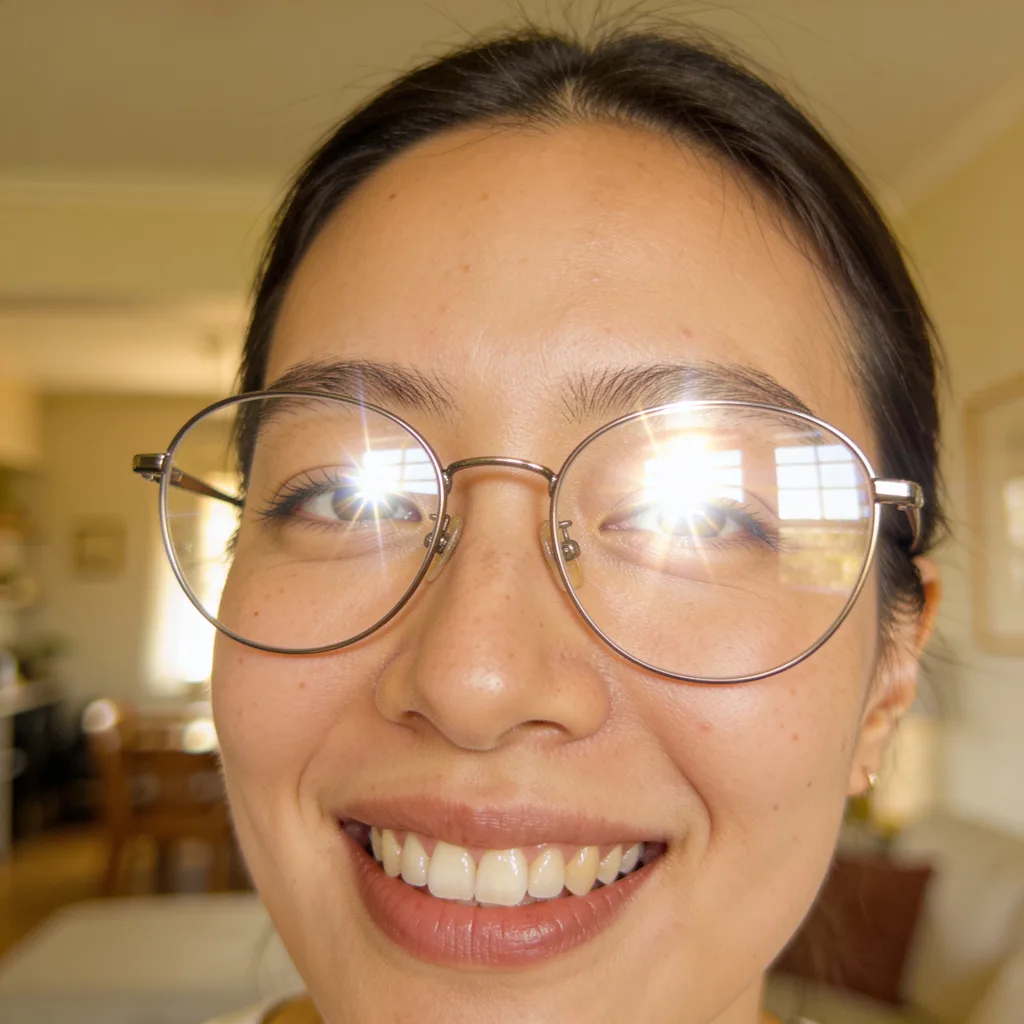
A blurry, pixelated or damaged original limits every edit made on top of it. Fix the file first with Unpixelate, Unblur or Restore old photo, then edit the clean version.
Fix the photo first, then edit it
Edits look better on a clean source. These tools prepare one.
AI photo editor: FAQ
Your photo, one sentence away from the version you want
The first edit each day is free and needs no account.