Pixelate an Image Online
Block out anything you don't want seen — an address on a delivery label, a plate, an ID number — or turn a whole photo into pixel art. No account, no watermark, and the image is processed on your device, never uploaded.
Pixelating replaces each square block of an image with that block's average color. Pick a block size, and everything finer than the block — letters, digits, small features — is averaged away in the exported file, not just hidden behind an overlay.
The tool below does it in your browser with plain canvas code: drag over the areas you want obscured (or pixelate the whole frame), tune the block size, and download a full-resolution PNG. Nothing is uploaded, so there's no server copy of your image to worry about.
- 01
Open your image
Drop in a JPG, PNG or WebP, or paste it from the clipboard. It's read locally by your browser and never sent anywhere.
- 02
Choose what to pixelate
Drag over the details you want obscured — one area or several — or leave it as-is to pixelate the whole frame. Tune the block size until nothing readable remains.
- 03
Download the PNG
Export at full resolution, no watermark. The pixelation is baked into the pixels of the file, not layered on top.
Drop an image here
JPG, PNG or WebP — processed on your device
or paste from clipboard (⌘V)
This tool runs entirely in your browser. Your image is never uploaded to any server.
What it looks like
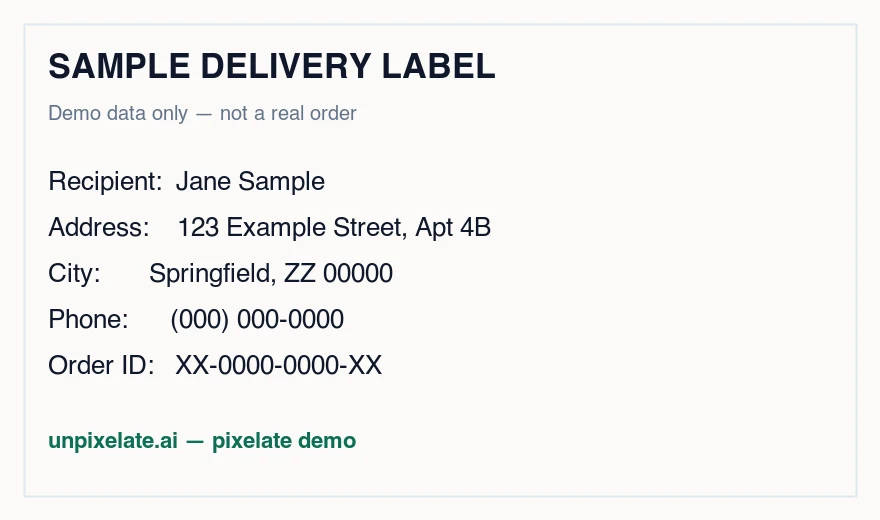
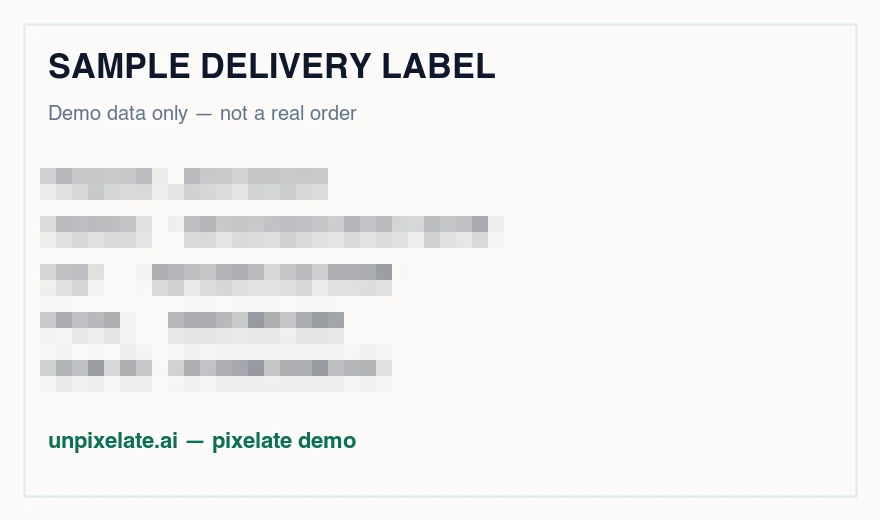
A sample delivery label (demo data) with the name, address, phone and order ID pixelated at a 14px block — the headline stays readable, the personal details don't. Drag the handle to compare.
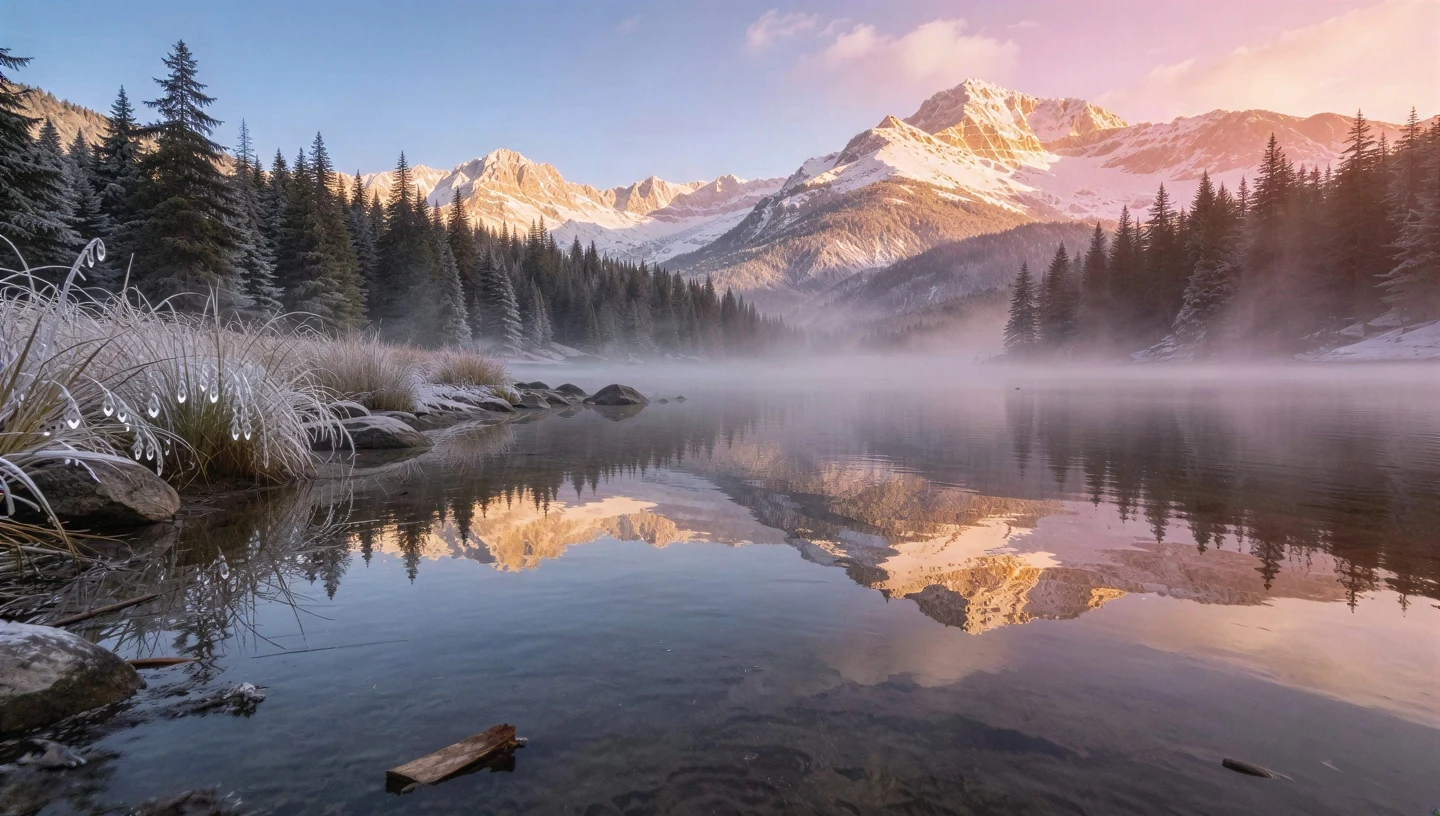
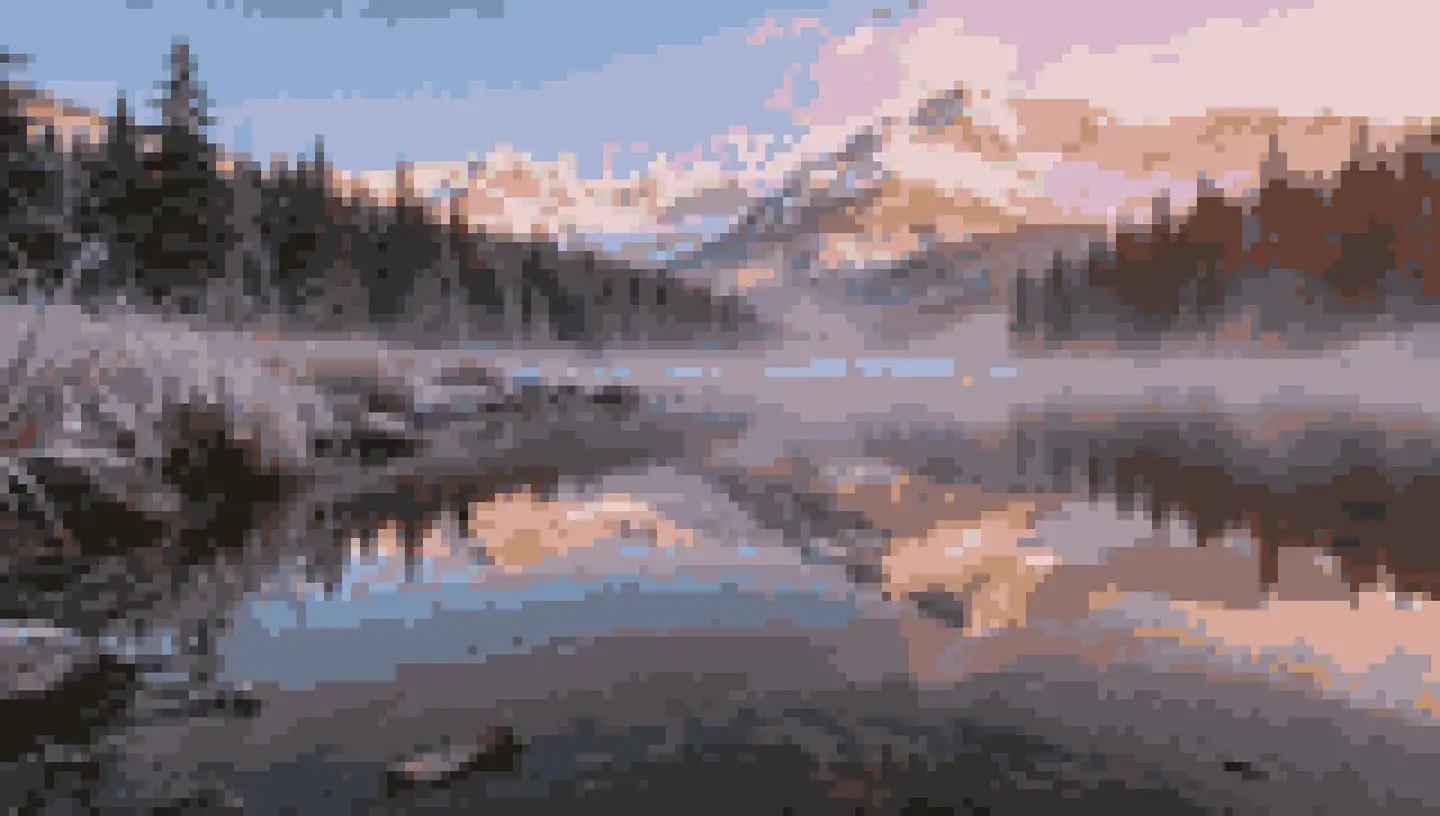
The same landscape from our homepage examples, converted with a 160-pixel grid and a 24-color palette — downsampling plus palette quantization, the same technique this tool runs in your browser.
What people pixelate
Personal details in screenshots
Order confirmations, chat threads, bank app screenshots, delivery labels: drag over names, addresses, phone numbers, account digits and QR codes before sharing them anywhere public.
Plates, badges and house numbers
Photos you post from the street or your driveway often carry more location detail than you intend. A coarse block over a plate or door number keeps the photo usable without the metadata-by-eyeball.
Pixel art from photos
The pixel art mode downsamples your photo to a coarse grid and reduces it to a small palette — avatars, game mockups, header art. It's the retro look, generated deterministically rather than by an AI model.
Teasers and placeholders
Pixelate a product shot or artwork before launch: the shape and palette read fine, the detail doesn't. Swap in the real image later.
How pixelation actually works — and picking a block size
Each block in the grid is replaced by the average of the pixels inside it. That's why the effect is destructive in the exported file: after averaging, a 20×20 block that used to contain three letters contains exactly one color, and the letters are not stored anywhere in the PNG you download.
Block size is the whole game. A rule of thumb for text: the block should be at least as tall as the letters themselves — a 10px-tall address line under a 14px block averages whole characters together. If a detail still feels guessable when you squint, go one notch coarser; you lose nothing by over-shooting.
Pixel art mode is the same downsampling plus one more step: median-cut palette quantization, which finds the N most representative colors and snaps every block to the nearest one. That palette snap is what makes the result read as deliberate pixel art instead of just a blurry small image.
Privacy notes — read before you rely on it
Your image stays on your device
The whole tool is client-side canvas code. There is no upload, no server-side copy, no queue — you can watch the network tab stay silent. This is also why it's instant.
Pixelation is strong, a solid box is stronger
Coarse pixelation averages detail away and is not reversible by any honest tool — including our own restorer, which works on low-resolution photos, not on deliberately obscured content. But if a detail is truly critical — a full ID number, a signature — cover it with an opaque rectangle in any editor, or crop it out. Absolute certainty beats clever.
Prefer pixelation over blur for hiding things
Gaussian blur preserves much more of the original structure than block averaging at a similar visual strength, and research has repeatedly shown blurred text is partially recoverable. If the goal is hiding information rather than aesthetics, pixelate coarsely or use a solid fill.
Pixelating images: FAQ
The other direction
Got a low-resolution photo of your own that you want sharper instead? That's the tool this site is named after.